ETJava Beta | Java
 注册
登录
注册
登录
注册
登录
注册
登录
Clipboard API 是一种允许网页读取剪贴板数据或向其中写入数据的API,主要有两个方法:
网上相关的文章基本上都是直接使用 Blazor 的JS互操作特性来实现功能 ,本文除了JS互操作还介绍了使用 ClipLazor 库实现功能的方法,使用第三方库代码会更简洁一点。
JS调用 Clipboard API的代码如下,代码可以直接放到 razor 页面中:
<script>
    window.clipboardCopy = {
        copyText: function (text) {
            navigator.clipboard.writeText(text).then(function () {
                alert("Copied to clipboard!");
            })
                .catch(function (error) {
                    alert(error);
                });
        }
    };
</script>
在 Razor 组件中注入 JSRuntime,并调用该JS:
@* 注入 IJSRuntime 实例,用于和 JavaScript 进行交互 *@
@inject IJSRuntime JsRuntime

// 该方法用于将文本异步复制到剪贴板
private async Task CopyTextToClipboard(string txt)
{
    await JsRuntime.InvokeVoidAsync("clipboardCopy.copyText", txt);
}
ClipLazor 是一个库,它为 Blazor 应用程序中的 Clipboard API 提供互操作,本质上是对JS互操作进行了封装。
新建一个 Blazor Web App 项目,开发框架选择 .NET8,在 Client 项目中通过 NuGet 添加 ClipLazor 依赖项。
在 Program.cs 文件中,使用 AddClipboard 方法将服务注册到 IoC 容器,服务端和客户端项目都需要添加:
using ClipLazor.Extention;
//...

builder.Services.AddClipboard();
//...
在服务端项目的 App.razor 文件中添加此脚本标记:
<script src="_content/ClipLazor/clipboard.min.js"></script>
Blazor Web App项目模板把解决方案分成了服务端、客户端两个项目,有交互操作的页面都需要放在客户端项目中,将 Clipboard 注入到 razor 文件中:
@using ClipLazor.Components;
@using ClipLazor.Enums;
@inject IClipLazor Clipboard
检查浏览器是否支持 Clipboard API:
bool isSupported = default;
bool isWritePermitted = default;
bool isReadPermitted = default;

protected override async Task OnAfterRenderAsync(bool firstRender)
{
    // 静态渲染期间无法进行js互操作,所以必须在这个周期点执行
    if (firstRender)
    {
        isSupported = await Clipboard.IsClipboardSupported();
        isWritePermitted = await Clipboard.IsPermitted(PermissionCommand.Write);
        isReadPermitted = await Clipboard.IsPermitted(PermissionCommand.Read);
    }
}
简单的复制粘贴文本的操作方法:
string msg = string.Empty;
string txt = string.Empty;
string pastedTxt = string.Empty;

async void CopyTxt(string txt)
{
    if (txt.Length > 0 && isSupported)
    {
        if (isWritePermitted)
        {
            var isCopied = await Clipboard.WriteTextAsync(txt.AsMemory());
            if (isCopied)
            {
                msg = "Text Copied";
            }
            else
            {
                msg = "Couldn't copy the text!.";
            }
        }
        StateHasChanged();

    }
}
async void PasteTxt()
{
    if (isSupported && isWritePermitted)
    {
        var pastedText = await Clipboard.ReadTextAsync();
        if (pastedText is not null)
        {
            msg = "Text Pasted";
            pastedTxt = pastedText;
        }
        else
        {
            msg = "Couldn't paste the text!.";
        }
    }

    StateHasChanged();
}
实际使用时也支持复制粘贴图像或二进制文件,具体代码可以参考 ClipLazor 库的完整示例。
以客户端项目的 Counter.razor 为例:
@page "/counter"
@rendermode InteractiveAuto
//代码:将 Clipboard 注入  到 razor 文件中

<PageTitle>Counter</PageTitle>

<h1>Counter</h1>
<p role="status">Current count: @currentCount</p>
<button class="btn btn-primary" @onclick="IncrementCount">Click me</button>

<p role="status">Txt: @txt</p>
<p role="status">Msg: @msg</p>
<p role="status">PastedTxt: @pastedTxt</p>


@code {

    //代码:检查浏览器是否支持 Clipboard API

    private int currentCount = 0;
    private async void IncrementCount()
    {
        currentCount++;
        txt = currentCount.ToString();
        CopyTxt(txt);
        PasteTxt();
    }

    //代码:简单的复制粘贴文本的操作方法
}
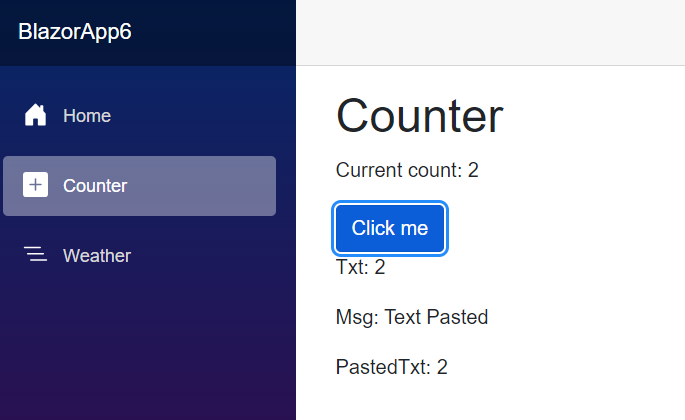
测试结果:
 官方公众号
官方公众号