ETJava Beta | Java
 注册
登录
注册
登录
注册
登录
注册
登录
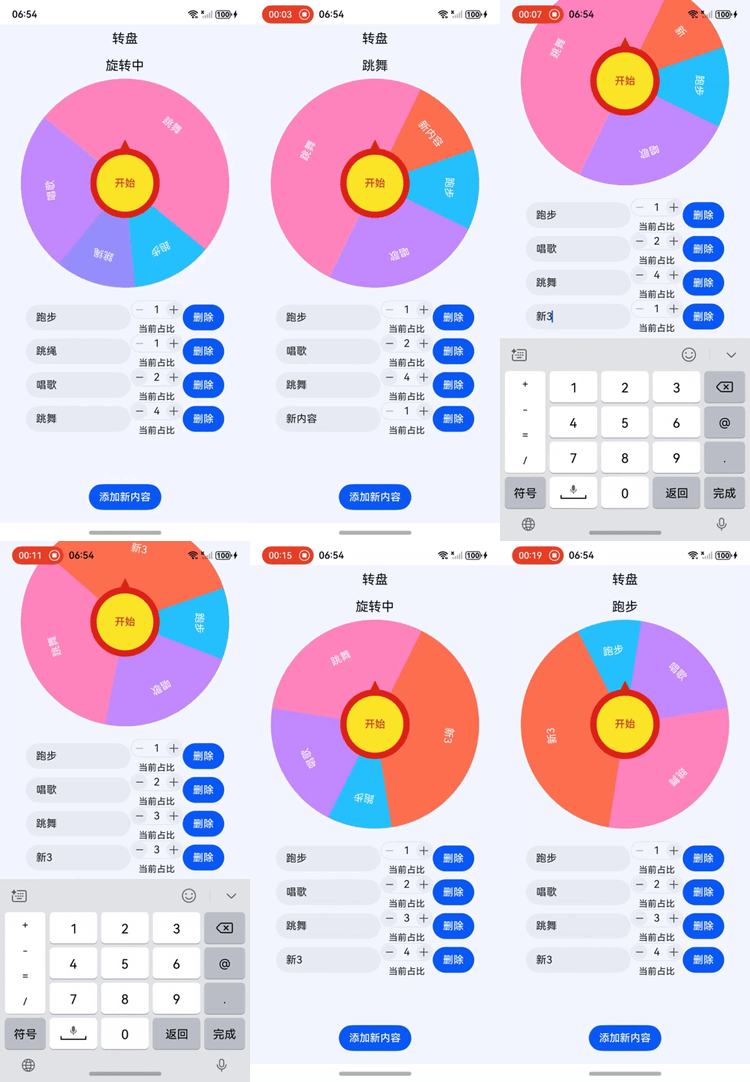
【1】引言(完整代码在最后面)
在鸿蒙NEXT系统中,开发一个有趣且实用的转盘应用不仅可以提升用户体验,还能展示鸿蒙系统的强大功能。本文将详细介绍如何使用鸿蒙NEXT系统开发一个转盘应用,涵盖从组件定义到用户交互的完整过程。
【2】环境准备
电脑系统:windows 10
开发工具:DevEco Studio NEXT Beta1 Build Version: 5.0.3.806
工程版本:API 12
真机:mate60 pro
语言:ArkTS、ArkUI
【3】难点分析
1. 扇形路径的计算
难点:创建扇形的路径需要精确计算起始点、结束点和弧线参数。尤其是涉及到三角函数的使用,初学者可能会对如何将角度转换为坐标感到困惑。
解决方案:可以通过绘制简单的示意图来帮助理解扇形的构造,并在代码中添加详细注释,解释每一步的计算过程。
2. 动态角度计算
难点:在转盘旋转时,需要根据单元格的比例动态计算每个单元格的角度和旋转角度。这涉及到累加和比例计算,可能会导致逻辑错误。
解决方案:使用数组的 reduce 方法来计算总比例,并在计算每个单元格的角度时,确保逻辑清晰。可以通过单元测试来验证每个单元格的角度是否正确。
3. 动画效果的实现
难点:实现转盘的旋转动画需要对动画的持续时间、曲线和结束后的状态进行管理。初学者可能会对如何控制动画的流畅性和效果感到困惑。
解决方案:可以参考鸿蒙NEXT的动画文档,了解不同的动画效果和参数设置。通过逐步调试,观察动画效果并进行调整。
4. 用户交互的处理
难点:处理用户点击事件,尤其是在动画进行时,如何禁用按钮以防止重复点击,可能会导致状态管理的复杂性。
解决方案:在按钮的点击事件中,使用状态变量(如 isAnimating)来控制按钮的可用性,并在动画结束后恢复按钮的状态。
5. 组件的状态管理
难点:在多个组件之间传递状态(如当前选中的单元格、转盘的角度等)可能会导致状态管理混乱。
解决方案:使用状态管理工具(如 @State 和 @Trace)来确保状态的统一管理,并在需要的地方进行状态更新,保持组件之间的解耦。
【完整代码】
import { CounterComponent, CounterType } from '@kit.ArkUI'; // 导入计数器组件和计数器类型

// 定义扇形组件
@Component
struct Sector {
  @Prop radius: number; // 扇形的半径
  @Prop angle: number; // 扇形的角度
  @Prop color: string; // 扇形的颜色

  // 创建扇形路径的函数
  createSectorPath(radius: number, angle: number): string {
    const centerX = radius / 2; // 计算扇形中心的X坐标
    const centerY = radius / 2; // 计算扇形中心的Y坐标
    const startX = centerX; // 扇形起始点的X坐标
    const startY = centerY - radius; // 扇形起始点的Y坐标
    const halfAngle = angle / 4; // 计算半个角度

    // 计算扇形结束点1的坐标
    const endX1 = centerX + radius * Math.cos((halfAngle * Math.PI) / 180);
    const endY1 = centerY - radius * Math.sin((halfAngle * Math.PI) / 180);

    // 计算扇形结束点2的坐标
    const endX2 = centerX + radius * Math.cos((-halfAngle * Math.PI) / 180);
    const endY2 = centerY - radius * Math.sin((-halfAngle * Math.PI) / 180);

    // 判断是否为大弧
    const largeArcFlag = angle / 2 > 180 ? 1 : 0;
    const sweepFlag = 1; // 设置弧线方向为顺时针

    // 生成SVG路径命令
    const pathCommands =
      `M${startX} ${startY} A${radius} ${radius} 0 ${largeArcFlag} ${sweepFlag} ${endX1} ${endY1} L${centerX} ${centerY} L${endX2} ${endY2} A${radius} ${radius} 0 ${largeArcFlag} ${1 -
        sweepFlag} ${startX} ${startY} Z`;
    return pathCommands; // 返回路径命令
  }

  // 构建扇形组件
  build() {
    Stack() {
      // 创建第一个扇形路径
      Path()
        .width(`${this.radius}px`) // 设置宽度为半径
        .height(`${this.radius}px`) // 设置高度为半径
        .commands(this.createSectorPath(this.radius, this.angle)) // 设置路径命令
        .fillOpacity(1) // 设置填充透明度
        .fill(this.color) // 设置填充颜色
        .strokeWidth(0) // 设置边框宽度为0
        .rotate({ angle: this.angle / 4 - 90 }); // 旋转扇形

      // 创建第二个扇形路径
      Path()
        .width(`${this.radius}px`) // 设置宽度为半径
        .height(`${this.radius}px`) // 设置高度为半径
        .commands(this.createSectorPath(this.radius, this.angle)) // 设置路径命令
        .fillOpacity(1) // 设置填充透明度
        .fill(this.color) // 设置填充颜色
        .strokeWidth(0) // 设置边框宽度为0
        .rotate({ angle: 180 - (this.angle / 4 - 90) }); // 旋转扇形
    }
  }
}

// 定义单元格类
@ObservedV2
class Cell {
  @Trace angle: number = 0; // 扇形的角度
  @Trace title: string; // 当前格子的标题
  @Trace color: string; // 背景颜色
  @Trace rotate: number = 0; // 在转盘要旋转的角度
  angleStart: number = 0; // 轮盘所在区间的起始
  angleEnd: number = 0; // 轮盘所在区间的结束
  proportion: number = 0; // 所占比例

  // 构造函数
  constructor(proportion: number, title: string, color: string) {
    this.proportion = proportion; // 设置比例
    this.title = title; // 设置标题
    this.color = color; // 设置颜色
  }
}

// 定义转盘组件
@Entry
@Component
struct Wheel {
  @State cells: Cell[] = []; // 存储单元格的数组
  @State wheelWidth: number = 600; // 转盘的宽度
  @State currentAngle: number = 0; // 当前转盘的角度
  @State selectedName: string = ""; // 选中的名称
  isAnimating: boolean = false; // 动画状态
  colorIndex: number = 0; // 颜色索引
  colorPalette: string[] = [ // 颜色调色板
    "#26c2ff",
    "#978efe",
    "#c389fe",
    "#ff85bd",
    "#ff7051",
    "#fea800",
    "#ffcf18",
    "#a9c92a"
  ];

  // 组件即将出现时调用
  aboutToAppear(): void {
    // 初始化单元格
    this.cells.push(new Cell(1, "跑步", this.colorPalette[this.colorIndex++ % this.colorPalette.length]));
    this.cells.push(new Cell(2, "跳绳", this.colorPalette[this.colorIndex++ % this.colorPalette.length]));
    this.cells.push(new Cell(1, "唱歌", this.colorPalette[this.colorIndex++ % this.colorPalette.length]));
    this.cells.push(new Cell(4, "跳舞", this.colorPalette[this.colorIndex++ % this.colorPalette.length]));

    this.calculateAngles(); // 计算角度
  }

  // 计算每个单元格的角度
  private calculateAngles() {
    // 根据比例计算总比例
    const totalProportion = this.cells.reduce((sum, cell) => sum + cell.proportion, 0);
    this.cells.forEach(cell => {
      cell.angle = (cell.proportion * 360) / totalProportion; // 计算每个单元格的角度
    });

    let cumulativeAngle = 0; // 累计角度
    this.cells.forEach(cell => {
      cell.angleStart = cumulativeAngle; // 设置起始角度
      cumulativeAngle += cell.angle; // 更新累计角度
      cell.angleEnd = cumulativeAngle; // 设置结束角度
      cell.rotate = cumulativeAngle - (cell.angle / 2); // 计算旋转角度
    });
  }

  // 构建转盘组件
  build() {
    Column() {
      Row() {
        Text('转盘').fontSize(20).fontColor("#0b0e15"); // 显示转盘标题
      }.width('100%').height(44).justifyContent(FlexAlign.Center); // 设置行的宽度和高度

      // 显示当前状态
      Text(this.isAnimating ? '旋转中' : `${this.selectedName}`).fontSize(20).fontColor("#0b0e15").height(40);

      Stack() {
        Stack() {
          // 遍历每个单元格并绘制扇形
          ForEach(this.cells, (cell: Cell) => {
            Stack() {
              Sector({ radius: lpx2px(this.wheelWidth) / 2, angle: cell.angle, color: cell.color }); // 创建扇形
              Text(cell.title).fontColor(Color.White).margin({ bottom: `${this.wheelWidth / 1.4}lpx` }); // 显示单元格标题
            }.width('100%').height('100%').rotate({ angle: cell.rotate }); // 设置宽度和高度,并旋转
          });
        }
        .borderRadius('50%') // 设置圆角
        .backgroundColor(Color.Gray) // 设置背景颜色
        .width(`${this.wheelWidth}lpx`) // 设置转盘宽度
        .height(`${this.wheelWidth}lpx`) // 设置转盘高度
        .rotate({ angle: this.currentAngle }); // 旋转转盘

        // 创建指针
        Polygon({ width: 20, height: 10 })
          .points([[0, 0], [10, -20], [20, 0]]) // 设置指针的点
          .fill("#d72b0b") // 设置指针颜色
          .height(20) // 设置指针高度
          .margin({ bottom: '140lpx' }); // 设置指针底部边距

        // 创建开始按钮
        Button('开始')
          .fontColor("#c53a2c") // 设置按钮字体颜色
          .borderWidth(10) // 设置按钮边框宽度
          .borderColor("#dd2218") // 设置按钮边框颜色
          .backgroundColor("#fde427") // 设置按钮背景颜色
          .width('200lpx') // 设置按钮宽度
          .height('200lpx') // 设置按钮高度
          .borderRadius('50%') // 设置按钮为圆形
          .clickEffect({ level: ClickEffectLevel.LIGHT }) // 设置点击效果
          .onClick(() => { // 点击按钮时的回调函数
            if (this.isAnimating) { // 如果正在动画中,返回
              return;
            }
            this.selectedName = ""; // 清空选中的名称
            this.isAnimating = true; // 设置动画状态为正在动画
            animateTo({ // 开始动画
              duration: 5000, // 动画持续时间为5000毫秒
              curve: Curve.EaseInOut, // 动画曲线为缓入缓出
              onFinish: () => { // 动画完成后的回调
                this.currentAngle %= 360; // 保持当前角度在0到360之间
                for (const cell of this.cells) { // 遍历每个单元格
                  // 检查当前角度是否在单元格的角度范围内
                  if (360 - this.currentAngle >= cell.angleStart && 360 - this.currentAngle <= cell.angleEnd) {
                    this.selectedName = cell.title; // 设置选中的名称为当前单元格的标题
                    break; // 找到后退出循环
                  }
                }
                this.isAnimating = false; // 设置动画状态为未动画
              },
            }, () => { // 动画进行中的回调
              this.currentAngle += (360 * 5 + Math.floor(Math.random() * 360)); // 更新当前角度,增加随机旋转
            });
          });
      }

      // 创建滚动区域
      Scroll() {
        Column() {
          // 遍历每个单元格,创建输入框和计数器
          ForEach(this.cells, (item: Cell, index: number) => {
            Row() {
              // 创建文本输入框,显示单元格标题
              TextInput({ text: item.title })
                .layoutWeight(1) // 设置输入框占据剩余空间
                .onChange((value) => { // 输入框内容变化时的回调
                  item.title = value; // 更新单元格标题
                });
              // 创建计数器组件
              CounterComponent({
                options: {
                  type: CounterType.COMPACT, // 设置计数器类型为紧凑型
                  numberOptions: {
                    label: `当前占比`, // 设置计数器标签
                    value: item.proportion, // 设置计数器初始值
                    min: 1, // 设置最小值
                    max: 100, // 设置最大值
                    step: 1, // 设置步长
                    onChange: (value: number) => { // 计数器值变化时的回调
                      item.proportion = value; // 更新单元格的比例
                      this.calculateAngles(); // 重新计算角度
                    }
                  }
                }
              });
              // 创建删除按钮
              Button('删除').onClick(() => {
                this.cells.splice(index, 1); // 从单元格数组中删除当前单元格
                this.calculateAngles(); // 重新计算角度
              });
            }.width('100%').justifyContent(FlexAlign.SpaceBetween) // 设置行的宽度和内容对齐方式
            .padding({ left: 40, right: 40 }); // 设置左右内边距
          });
        }.layoutWeight(1); // 设置滚动区域占据剩余空间
      }.layoutWeight(1) // 设置滚动区域占据剩余空间
      .margin({ top: 20, bottom: 20 }) // 设置上下外边距
      .align(Alignment.Top); // 设置对齐方式为顶部对齐

      // 创建添加新内容按钮
      Button('添加新内容').onClick(() => {
        // 向单元格数组中添加新单元格
        this.cells.push(new Cell(1, "新内容", this.colorPalette[this.colorIndex++ % this.colorPalette.length]));
        this.calculateAngles(); // 重新计算角度
      }).margin({ top: 20, bottom: 20 }); // 设置按钮的上下外边距
    }
    .height('100%') // 设置组件高度为100%
    .width('100%') // 设置组件宽度为100%
    .backgroundColor("#f5f8ff"); // 设置组件背景颜色
  }
}
 官方公众号
官方公众号