ETJava Beta | Java
 注册
登录
注册
登录
注册
登录
注册
登录
你好,我是 Kagol,个人公众号:前端开源星球。
今年4月份,听到 Quill 2.0 正式发布的消息,我心情非常激动,立马体验了下,并写了一篇文章。
由于越来越多用户声音希望提供富文本组件,于是我们基于 Quill 2.0 封装了一个功能更全面的 Fluent Editor 富文本。
接下来我就带大家一起使用下 Fluent Editor,使用起来基本上和 Quill 没什么区别,只需要重点关注下增强的部分,比如表格、附件、@提醒、表情等模块。
Fluent Editor 基于 Quill 2.0 进行封装,扩展了很多实用的模块功能,使用方式和 Quill 一样。
安装依赖:
npm i @opentiny/fluent-editor
编写 HTML:
<div id="editor">
  <p><strong>Fluent Editor</strong> 是一个基于 <a class="ql-normal-link" href="https://quilljs.com/" target="_blank">Quill 2.0</a> 的富文本编辑器,在 Quill 基础上扩展了丰富的模块和格式,功能强大、开箱即用。</p>
  <p><br></p>
  <p>官网:<a class="ql-normal-link" href="https://opentiny.github.io/fluent-editor/" target="_blank">https://opentiny.github.io/fluent-editor/</a></p>
  <p>源码:<a class="ql-normal-link" href="https://github.com/opentiny/fluent-editor/" target="_blank">https://github.com/opentiny/fluent-editor/</a>(欢迎 Star )</p>
</div>
引入样式:
@import '@opentiny/fluent-editor/style.css';
初始化 Fluent Editor 编辑器:
import FluentEditor from '@opentiny/fluent-editor'

const editor = new FluentEditor('#editor', {
  theme: 'snow'
})

配置工具栏是最常见的需求。
Fluent Editor 支持 27 种内置工具栏按钮,当然也可以扩展。
除了支持 Quill 内置的 22 种工具栏之外,还支持以下工具栏:
undo 撤销redo 重做better-table 表格file 文件上传,需要启用 file 模块emoji 插入表情,需要启用 emoji-toolbar 模块Quill 支持的工具栏: https://quilljs.com/docs/modules/toolbar
可以通过 toolbar 模块配置工具栏按钮:
import FluentEditor from '@opentiny/fluent-editor'

const toolbarOptions = [
  ['undo', 'redo'],                                 // Fluent Editor added
  ['bold', 'italic', 'underline', 'strike'],        // toggled buttons
  ['blockquote', 'code-block'],
  ['link', 'image', 'video', 'formula'],

  [{ 'header': 1 }, { 'header': 2 }],               // custom button values
  [{ 'list': 'ordered'}, { 'list': 'bullet' }, { 'list': 'check' }],
  [{ 'script': 'sub'}, { 'script': 'super' }],      // superscript/subscript
  [{ 'indent': '-1'}, { 'indent': '+1' }],          // outdent/indent
  [{ 'direction': 'rtl' }],                         // text direction

  [{ 'size': ['small', false, 'large', 'huge'] }],  // custom dropdown
  [{ 'header': [1, 2, 3, 4, 5, 6, false] }],

  [{ 'color': [] }, { 'background': [] }],          // dropdown with defaults from theme
  [{ 'font': [] }],
  [{ 'align': [] }],

  ['clean'],                                         // remove formatting button
  ['better-table', 'file', 'emoji']                  // Fluent Editor added
]

const editor = new FluentEditor('#editor', {
  theme: 'snow',
  modules: {
    toolbar: toolbarOptions,
    syntax: true,          // 代码块高亮
    file: true,            // 文件上传
    'emoji-toolbar': true, // 插入表情
  }
})
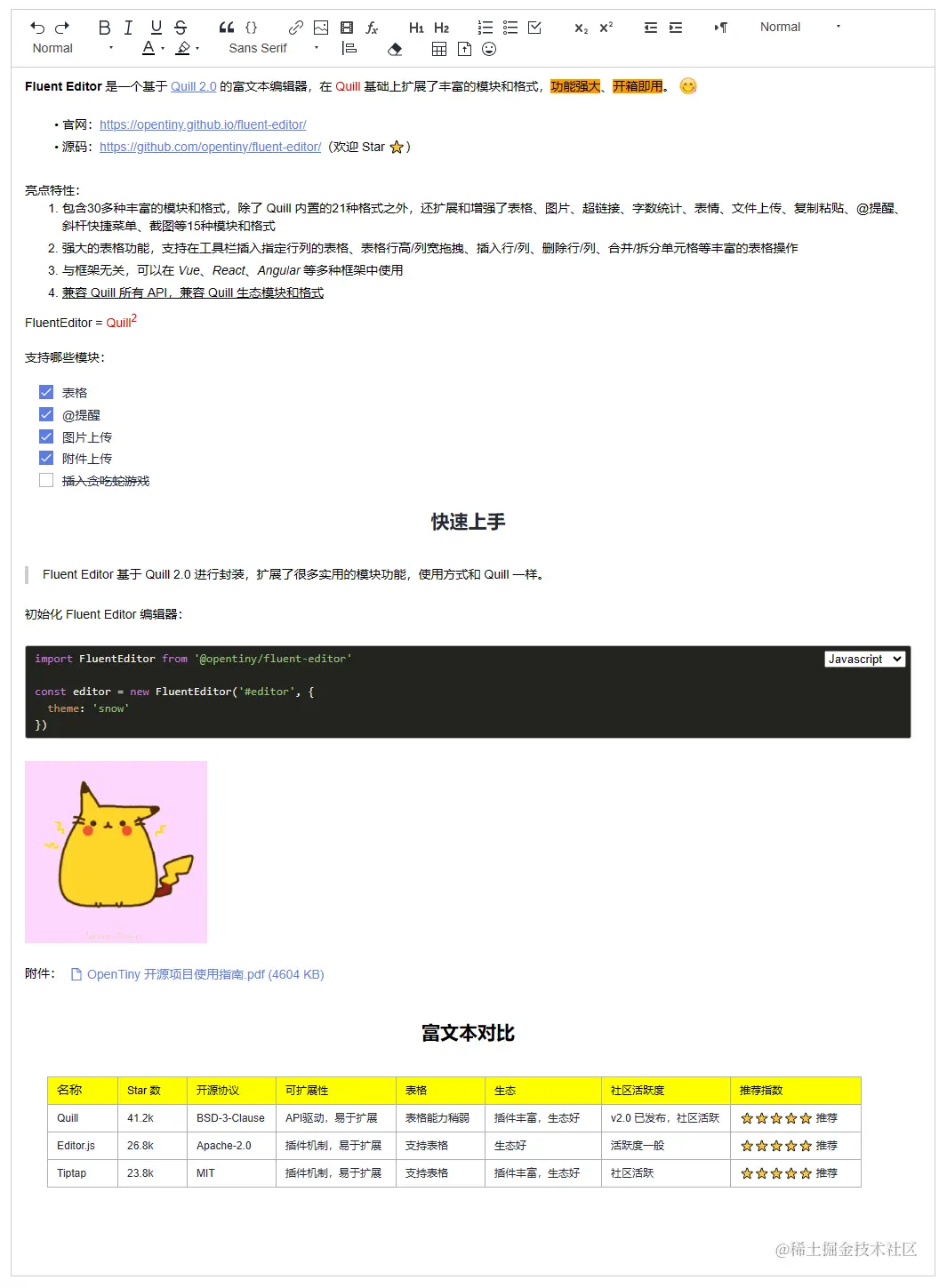
除了配置内置的工具栏,也支持扩展工具栏按钮,具体扩展方式可以参考我之前写的文章:
深入浅出 Quill 系列之实践篇2:整个贪吃蛇游戏到编辑器里玩儿吧
或者参考 Quill 官方文档:https://quilljs.com/docs/modules/toolbar#handlers
Fluent Editor 支持 11 种内置模块:
通过 modules 配置模块,比如要启用一个模块,可以设置该模块为 true。
const editor = new FluentEditor('#editor', {
  theme: 'snow',
  modules: {
    toolbar: toolbarOptions,
    syntax: true,          // 启用代码块高亮模块
    file: true,            // 启用文件上传模块
    'emoji-toolbar': true, // 启用插入表情模块
  }
})
还可以传入一些配置项,定制模块的功能,比如:配置表格右键操作菜单。
const editor = new FluentEditor('#editor', {
  theme: 'snow',
  modules: {
    toolbar: toolbarOptions,
    'better-table': {
      operationMenu: {
        color: {
          text: '主题色',
          colors: [
            '#ffffff', '#f2f2f2', '#dddddd', '#a6a6a6', '#666666', '#000000',
            '#c00000', '#ff0000', '#ffc8d3', '#ffc000', '#ffff00', '#fff4cb',
            '#92d050', '#00b050', '#dff3d2', '#00b0f0', '#0070c0', '#d4f1f5',
            '#002060', '#7030a0', '#7b69ee', '#1476ff', '#ec66ab', '#42b883',
          ]
        }
      }
    }
  }
})
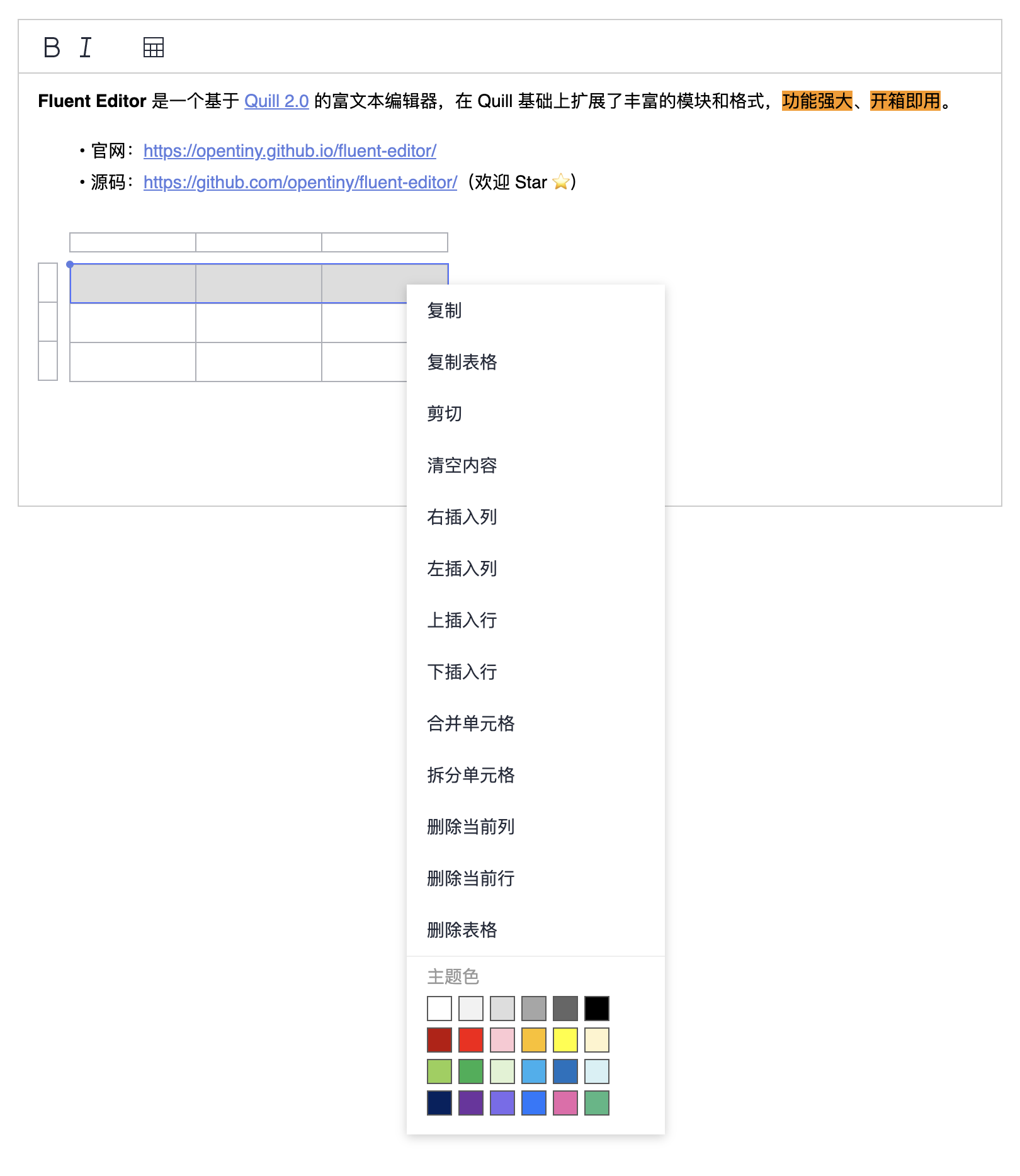
更多使用方式可参考 Fluent Editor 和 Quill 文档:
Quill 是一个模块化的富文本,拥有很多外部生态模块,Fluent Editor 基于 Quill,和 Quill 拥有一样的模块化能力,我们从以下 Quill 模块列表中选择一个 Markdown 快捷键的模块:quill-markdown-shortcuts,配置到我们的 Fluent Editor 富文本中。
https://github.com/quilljs/awesome-quill
首先需要安装 quill-markdown-shortcuts。
npm i quill-markdown-shortcuts
然后注册这个模块:
import FluentEditor from '@opentiny/fluent-editor'

// 引入和注册
import MarkdownShortcuts from 'quill-markdown-shortcuts'

FluentEditor.register('modules/markdownShortcuts', MarkdownShortcuts)
配置到 modules 中即可:
new FluentEditor('#editor', {
  theme: 'snow',
  modules: {
    markdownShortcuts: {} // 启动 Markdown 快捷键模块
  }
})
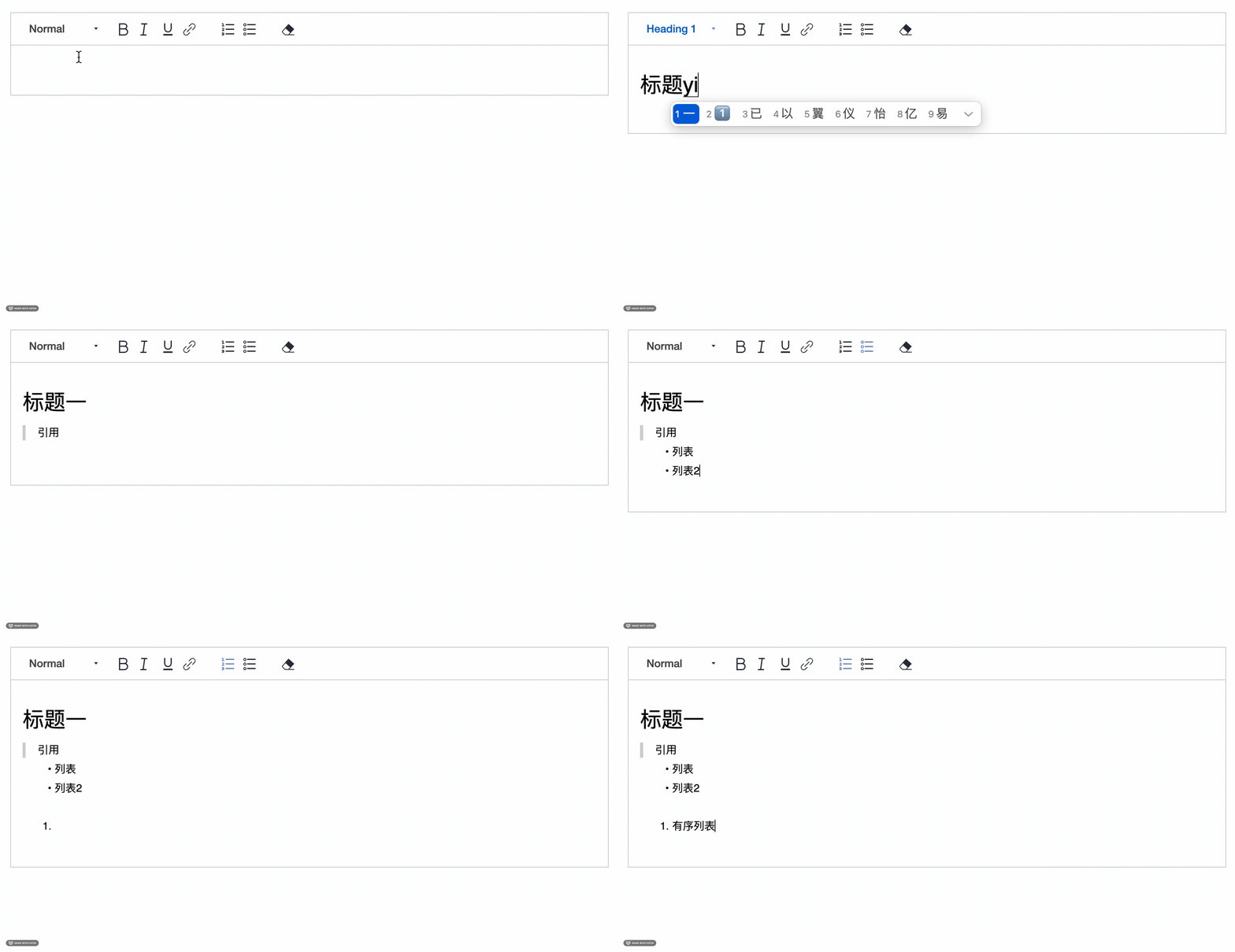
这时我们在富文本编辑器中输入 Markdown 语法的快捷键,比如:#,按空格键,会自动变成一级标题的格式。
效果如下:
除了配置现有模块之外,还支持扩展新模块,具体可以参考我之前写的文章:
深入浅出 Quill 系列之原理篇1:现代富文本编辑器 Quill 的模块化机制
Fluent Editor 是一个框架无关的富文本编辑器,可以在任意前端框架中使用。
比如在 Vue 中使用:
App.vue
<script setup lang="ts">
import { onMounted } from 'vue'
import FluentEditor from '@opentiny/fluent-editor'

onMounted(() => {
  new FluentEditor('#editor', {
    theme: 'snow'
  })
})
</script>

<template>
  <div id="editor"></div>
</template>
在 React 中使用:
App.tsx
import { useEffect } from 'react'
import FluentEditor from '@opentiny/fluent-editor'
import '@opentiny/fluent-editor/style.css'

function App() {
  useEffect(() => {
    new FluentEditor('#editor', {
      theme: 'snow'
    })
  })

  return (
    <div id="editor"></div>
  )
}

export default App
本文主要从以下几个部分给大家进行分享。
quill-markdown-shortcuts 为例,介绍如何配置 Quill 生态模块更多用法请参考 Fluent Editor 官网:https://opentiny.github.io/fluent-editor/
由于 Fluent Editor 就是基于 Quill 进行封装的,其实掌握 Quill 基本上就掌握了 Fluent Editor,欢迎大家关注我之前写的《深入浅出 Quill》系列文章:
https://juejin.cn/column/7325707131678769152
GitHub:https://github.com/opentiny/tiny-vue(欢迎 Star )
官网:https://opentiny.design/tiny-vue
B站:https://space.bilibili.com/15284299
个人博客:https://kagol.github.io/blogs
小助手微信:opentiny-official
公众号:OpenTiny
 官方公众号
官方公众号