ETJava Beta | Java
 注册
登录
注册
登录
注册
登录
注册
登录
小程序录制视频;10-30秒;需要拍摄人脸,大声朗读数字(123456)这种。
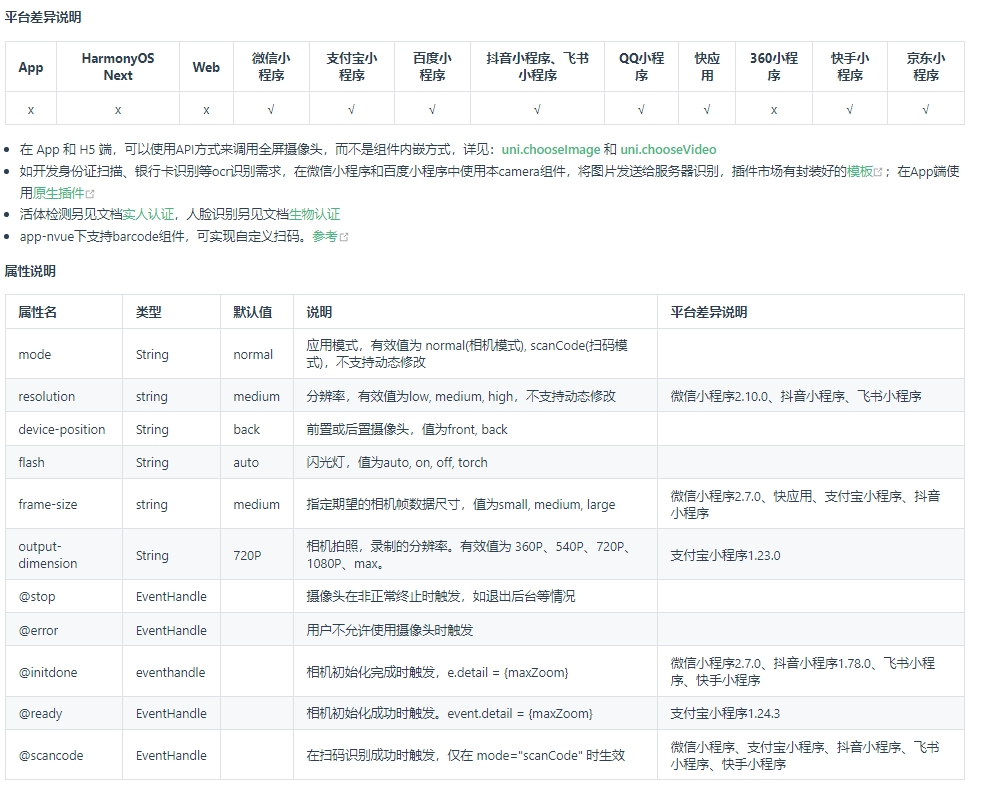
camera页面内嵌的区域相机组件。注意这不是点击后全屏打开的相机
camera只支持小程序使用;
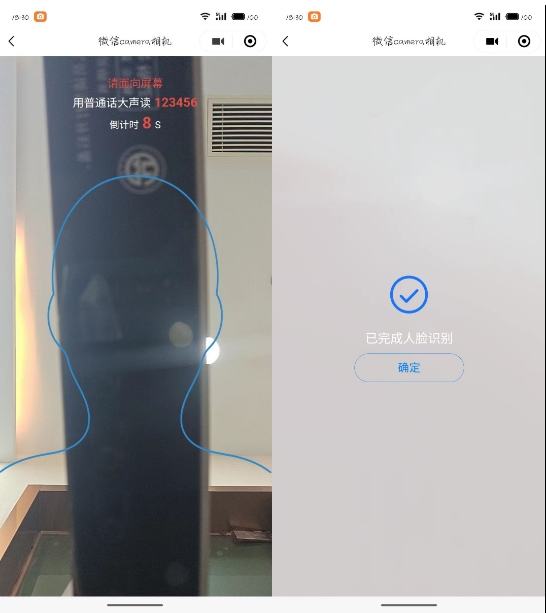
camera 设置宽100%,高度通过uni.getSystemInfo获取,全屏展示。在通过定位把提示文字等信息放上去;
录制完毕,遮罩提示,完成录制,确认返回;

<template>
    <view class="camera-position">
        <camera device-position="front" flash="auto" @error="onCameraError"
            :style="'width: 100%; height: '+ screenHeight +'px;'">
            <!-- 人脸轮廓-图片 -->
            <image src="../../static/face/face-avater.png" style="width: 100%; height: 55vh; margin:22vh 0 0 0;"
                v-if="!achieveShow"></image>
        </camera>

        <!-- 顶部提示信息 -->
        <view class="camera-top text-center" v-show="!achieveShow">
            <view class="text-lg text-red">
                请面向屏幕
            </view>
            <view class="text-xl text-white margin-tb-xs">
                <text class="text-lg">用普通话大声读</text>
                <text class="text-red text-bold margin-left-xs">123456</text>
            </view>
            <view class="text-xxl text-red">
                <text class="text-df text-white">倒计时</text>
                <text class="text-red text-bold margin-lr-xs">{{totalSeconds}}</text>
                <text class="text-df text-white">S</text>
            </view>
        </view>

        <!-- 完成拍摄 -->
        <view class="achieve-shade" :style="'width: 100%; height: '+ screenHeight +'px;'" v-if="achieveShow">
            <view class="" style="font-size: 120rpx;color: #1977FF;">
                <text class="cuIcon-roundcheck"></text>
            </view>
            <view class="text-xl text-white margin-tb-sm">
                已完成人脸识别
            </view>
            <button class="cu-btn line-blue round lg" @click="confirmBut">确定</button>
        </view>
    </view>
</template>
注:行内css text-xl text-white margin-tb-xs使用了 ColorUI-UniApp 插件内容
css样式
<style lang="scss" scoped>
    .camera-position {
        position: relative;

        .camera-top {
            position: absolute;
            left: 0;
            top: 50rpx;
            width: 100%;
        }

        .camera-bottom {
            position: absolute;
            left: 0;
            bottom: 0;
            width: 100%;
        }

        .achieve-shade {
            position: absolute;
            left: 0;
            top: 0;
            background-color: rgba(222, 222, 222, 0.9);
            display: flex;
            flex-direction: column;
            align-items: center;
            justify-content: center;

            button {
                width: 300rpx;
            }
        }
    }
</style>
js代码
<script>
    export default {
        data() {
            return {
                cameraContext: null,
                //计时器
                timer: null,
                //录制时长
                totalSeconds: 10,
                //屏幕高度
                screenHeight: "",
                //是否显示-完成遮罩
                achieveShow: false
            }
        },
        onLoad() {
            let that = this
            uni.getSystemInfo({
                success: (res) => {
                    console.log('屏幕宽度,单位为px:', res.windowWidth);
                    console.log('屏幕高度,单位为px:', res.windowHeight);
                    that.screenHeight = res.windowHeight;
                },
            });

            setTimeout(() => {
                this.startShoot()
            }, 500)
        },
        onReady() {
            // 创建 camera 上下文 CameraContext 对象
            this.cameraContext = uni.createCameraContext()
        },
        methods: {
            // 开始拍摄
            startShoot() {
                this.cameraContext.startRecord({
                    timeoutCallback: () => {
                        console.error('超出限制时长', this.totalSecond);
                    },
                    timeout: this.totalSeconds,
                    success: (res) => {
                        //开启计时器
                        this.timer = setInterval(() => {
                            this.totalSeconds--
                        }, 1000)
                        console.log(res, '开始拍摄');
                    },
                    fail: (err) => {
                        this.errToast('摄像头启动失败,请重新打开')
                    }
                })
            },
            // 结束拍摄
            stopShoot() {
                // 接触 计时器
                if (this.timer) clearInterval(this.timer)

                this.cameraContext.stopRecord({
                    compressed: true,
                    success: (res) => {
                        //显示遮罩
                        this.achieveShow = true
                        // TODO 获取数据帧
                        console.log(res, '结束拍摄');
                    },
                    fail: (err) => {
                        this.errToast('视频保存失败,请重新录制')
                    },
                })
            },
            // 摄像头错误
            onCameraError(error) {
                console.error('摄像头错误: ', error.detail);
            },
            //摄像头-失败操作
            errToast(e) {
                this.$operate.toast({
                    title: e
                })
                setTimeout(() => {
                    this.confirmBut()
                }, 500)
            },
            //确定-返回上一页
            confirmBut() {
                uni.navigateBack()
            },
        },
        watch: {
            //监听倒计时
            totalSeconds: {
                handler(newVal) {
                    // console.log(newVal, '倒计时');
                    //倒计时 = 1 的时候结束拍摄
                    if (newVal == 1) {
                        //结束拍摄
                        this.stopShoot()
                    }
                }
            }
        }
    }
</script>
注:第一次进入页面,有时候摄像头会启动失败,需要重新点击打开;
案例地址: https://gitee.com/jielov/uni-app-tabbar
微信小程序中需要使用手机拍摄照片以及视频;使用wx.chooseMediaAPI来实现;
该API用于拍摄或从手机相册中选择图片或视频,官网链接为:
wx.chooseMedia({
	//数量 1-9
	count: 1,
	//时长
	maxDuration: '10',
	// 文件类型  image 图片  video视频   mix同时选择图片和视频
	mediaType: ['video'],
	// 图片和视频选择的来源: album 相册  camera相机拍摄
	sourceType: ['camera'],
	//摄像头: back 前置  front 后置摄像头
	camera: 'back',
	success(res) {
		console.log(res)
		console.log(res.tempFiles[0].tempFilePath)
	},
	fail(err) {
		console.log(err)
	}
})
 官方公众号
官方公众号
