ETJava Beta | Java
 注册
登录
注册
登录
注册
登录
注册
登录
如何自定义一个转换键(Toggle)?
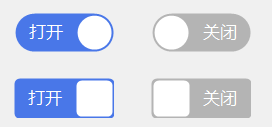
三步绘制一个精美控件:
主要技能:
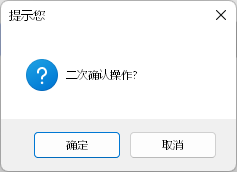
转换按钮使能时添加二次确认弹框?
在From窗体中应用控件时,点击事件没有触发?
属性名称在控件属性树中的排列如何定义?
添加一个字体更改属性?
#region 属性

private Font displayFont = new Font("Segoe UI", 12);
[Browsable(true)]
[Category("布局_G")]
[Description("字体格式")]
public Font DisplayFont
{
    get { return displayFont; }
    set
    {
        if (value != null)
        {
            displayFont = value;
            this.Invalidate(); // Trigger redraw
        }
    }
}

private bool _checked = false;
[Browsable(true)]  //说明(需放在属性前边):是否选中
[Category("布局_G")]
[Description("是否选中")]
public bool Checked
{
    get { return _checked; }
    set
    {
        _checked = value;
        this.Invalidate();

        //激活触发事件
        this.MouseDown_G?.Invoke(this, null);

    }
}

private string falseText = "关闭";
[Browsable(true)]  //说明:文本关闭
[Category("布局_G")]
[Description("文本关闭")]
public string FalseText
{
    get { return falseText; }
    set { falseText = value; this.Invalidate(); }
}

//样式切换
public enum SwType
{
    Ellipse,    //椭圆
    Rectangle,  //矩形
}

private SwType switchType = SwType.Ellipse;
[Browsable(true)]  //说明:切换样式
[Category("布局_G")]
[Description("切换样式")]
public SwType SwitchType
{
    get { return switchType; }
    set { switchType = value; this.Invalidate(); }
}

private Color sliderColor = Color.White; //Color.White
[Browsable(true)]  //说明:滑块颜色
[Category("布局_G")]
[Description("滑块颜色")]
public Color SliderColor
{
    get { return sliderColor; }
    set { sliderColor = value; this.Invalidate(); }
}

#endregion
属性名称在控件属性树中的排列如何定义?
答:根据属性说明安装A~Z的字母顺序排列
      #region 画布

      private Graphics graphics;
      private int width;
      private int height;

      //矩形绘制
      protected override void OnPaint(PaintEventArgs e)
      {
          base.OnPaint(e);
          graphics = e.Graphics;
          graphics.TextRenderingHint = System.Drawing.Text.TextRenderingHint.AntiAlias;
          graphics.TextRenderingHint = System.Drawing.Text.TextRenderingHint.ClearTypeGridFit;
          graphics.SmoothingMode = System.Drawing.Drawing2D.SmoothingMode.AntiAlias;
          graphics.SmoothingMode = System.Drawing.Drawing2D.SmoothingMode.HighQuality;

          this.width = this.Width;
          this.height = this.Height;

          if (this.switchType == SwType.Rectangle)  //字段选择为矩形时
          {
              //填充色
              Color fillColor = this._checked ? trueColor : falseColor;

              //带四角圆弧的矩形
              GraphicsPath path = new GraphicsPath();
              int diameter = 10;  //默认圆弧直径
              //左上角圆弧:起始坐标,宽,高,开始角度,扫描角度
              path.AddArc(0, 0, diameter, diameter, 180f, 90f);
              path.AddArc(this.width - diameter, 0, diameter, diameter, 270f, 90f);  //右上角
              path.AddArc(this.width - diameter, this.height - diameter, diameter, diameter, 0f, 90f);  //右下角
              path.AddArc(0, this.height - diameter, diameter, diameter, 90f, 90f);  //左下角
              graphics.FillPath(new SolidBrush(fillColor), path);  //填充色

              //文本
              string strText = this._checked ? trueText : falseText;

              //滑块(true\false 两种形态)
              if (_checked)
              {
                  //绘制滑块
                  path = new GraphicsPath();
                  int sliderwidth = this.height - 4;
                  path.AddArc(this.width - sliderwidth - 2, 2, diameter, diameter, 180f, 90f);
                  path.AddArc(this.width - diameter - 2, 2, diameter, diameter, 270f, 90f);
                  path.AddArc(this.width - diameter - 2, this.height - diameter - 2, diameter, diameter, 0f, 90f);
                  path.AddArc(this.width - sliderwidth - 2, this.height - diameter - 2, diameter, diameter, 90f, 90f);
                  graphics.FillPath(new SolidBrush(sliderColor), path);

                  //绘制文本
                  Rectangle rec = new Rectangle(0, 0, this.width - sliderwidth - 2, this.height);
                  StringFormat sf = new StringFormat();
                  sf.Alignment = StringAlignment.Center;
                  sf.LineAlignment = StringAlignment.Center;

                  graphics.DrawString(strText, DisplayFont, new SolidBrush(sliderColor), rec, sf);

              }
              else
              {
                  //绘制滑块
                  path = new GraphicsPath();
                  int sliderwidth = this.height - 4;
                  path.AddArc(2, 2, diameter, diameter, 180f, 90f);
                  path.AddArc(sliderwidth - diameter + 2, 2, diameter, diameter, 270f, 90f);
                  path.AddArc(sliderwidth - diameter + 2, sliderwidth - diameter + 2, diameter, diameter, 0f, 90f);
                  path.AddArc(2, sliderwidth - diameter + 2, diameter, diameter, 90f, 90f);
                  graphics.FillPath(new SolidBrush(sliderColor), path);

                  //绘制文本
                  Rectangle rec = new Rectangle(sliderwidth + 2, 0, this.width - sliderwidth - 2, this.height);
                  StringFormat sf = new StringFormat();
                  sf.Alignment = StringAlignment.Center;
                  sf.LineAlignment = StringAlignment.Center;
                  graphics.DrawString(strText, DisplayFont, new SolidBrush(sliderColor), rec, sf);
              }
          }
          else if (this.switchType == SwType.Ellipse)  //字段选择为椭圆时
          {
              //填充色
              Color fillColor = this._checked ? trueColor : falseColor;

              //椭圆形
              GraphicsPath path = new GraphicsPath();

              path.AddArc(1, 1, this.height - 2, this.height - 2, 90f, 180f);
              path.AddArc(this.width - (this.height - 2) - 1, 1, this.height - 2, this.height - 2, 270f, 180f);
              graphics.FillPath(new SolidBrush(fillColor), path);  //填充色

              //文本
              string strText = this._checked ? TrueText : falseText;

              //滑块(true\false 两种形态)
              if (_checked)
              {
                  //绘制滑块
                  int ciclewidth = this.height - 6;
                  graphics.FillEllipse(new SolidBrush(sliderColor), new Rectangle(this.width - ciclewidth - 3, 3, ciclewidth, ciclewidth));

                  //绘制文本
                  Rectangle rec = new Rectangle(0, 0, this.width - ciclewidth - 3, this.height);
                  StringFormat sf = new StringFormat();
                  sf.Alignment = StringAlignment.Center;
                  sf.LineAlignment = StringAlignment.Center;
                  graphics.DrawString(strText, DisplayFont, new SolidBrush(sliderColor), rec, sf);
              }
              else
              {
                  //绘制滑块
                  int ciclewidth = this.height - 6;

                  graphics.FillEllipse(new SolidBrush(sliderColor), new Rectangle(3, 3, ciclewidth, ciclewidth));

                  //绘制文本
                  Rectangle rec = new Rectangle(ciclewidth + 3, 0, this.width - ciclewidth - 3, this.height);
                  StringFormat sf = new StringFormat();
                  sf.Alignment = StringAlignment.Center;
                  sf.LineAlignment = StringAlignment.Center;
                  graphics.DrawString(strText, DisplayFont, new SolidBrush(sliderColor), rec, sf);
              }
          }
      }

      #endregion
先执行控件内部的MouseDown方法——其方法内部的属性——其属性中的触发事件——最后执行From后台的点击生成的自定义方法(可自定义)
<From中双击控件默认是Load方法,想让他自动生成自己设置的事件需要在控件代码中添加:[DefaultEvent("MouseDown_G")]>。
//指定默认事件(双击控件进入)
[DefaultEvent("MouseDown_G")]
//事件声明 public event EventHandler MouseDown_G;
//激活事件 this.MouseDown_G?.Invoke(this, null); ——执行完成跳转到From中的双击事件方法中
//构造函数添加鼠标点击事件——点击控件事件处理
this.MouseDown += Toggle_MouseDown;
//构造函数添加事件处理后自动生成此方法(无需在控件的属性中双击)
private void Toggle_MouseDown(object sender, MouseEventArgs e)
  {
      DialogResult dr = MessageBox.Show("二次确认操作?", "提示您", MessageBoxButtons.OKCancel, MessageBoxIcon.Question);
      if (dr == DialogResult.OK)
      {
          Checked = !Checked;
      }
      else return;
  }
发现一个错误,当应用该控件时,在From中点击无效;经过两天的查询(断点查询)才发现问题所在,在Form的设计器中的From属性的Enable为False,改为true才可使能
原因:控件更新后没有及时生成导致From崩盘后(空窗口后没在意),导致Designer的默认代码更改。
讨论交流请留言
 官方公众号
官方公众号